

English · Українська ↓
Capture and annotate screenshots, find what you copied, and bring frequently used text back in a few keystrokes. Shotleaf lives in your Mac menu bar. Free and open source, with no account or tracking.
Download for Mac · Website · Guide · Releases
macOS 15+ · Apple silicon (M1 or newer) · GPL-3.0-or-later · 
Capture an area, a window, the screen or a scrolling page. Add arrows, text, shapes, backgrounds and watermarks; blur private information and copy text from images on your Mac.

Search and pin items in clipboard history, find screenshots and paste several items at once.

Expand abbreviations into reusable text with dates, questions and pictures.

macOS 15 or later on Apple silicon (M1 or newer).
-
Download
Shotleaf.dmgfrom Releases, open it and drag Shotleaf onto Applications. -
Open it. Shotleaf isn't notarised by Apple, so the first time macOS says it can't check the app. Open System Settings › Privacy & Security, scroll down and click Open Anyway.
-
The setup guide asks for two permissions:
- Screen Recording: screenshots and text from the screen.
- Accessibility: snippets and pasting from the clipboard history.
Shotleaf restarts by itself after each one is turned on. Until both are on, the setup guide opens at every launch.
When a new version is out, Update to Shotleaf… appears at the top of the menu. Shotleaf downloads it, checks that the release is signed with Shotleaf's update key, that the download matches it and that the app inside is signed like the one you have, and restarts into it, with your settings and permissions. It looks for a new version at launch and once a day (turn that off in Settings › General). Versions before 0.1.3 can't do this yet: update those once by hand from Releases, quitting Shotleaf first.
macOS may stop trusting the new copy with its permissions even though the switches still look on. If screenshots or pasting stop working, open System Settings › Privacy & Security, remove Shotleaf with – from Screen Recording and Accessibility, and allow it again.
| Screenshot | ⌘⇧2 |
| Scrolling screenshot | ⌘⇧3 |
| Text from the screen | ⌘⇧1 |
| Clipboard history | ⇧⌘V |
| Snippets | ⇧⌘B |
| Edit the last screenshot | ⌃⌥⌘E |
| Edit an image from the clipboard | ⌃⌥⌘V |
⌘⇧3 is also the macOS full-screen screenshot, and some apps use ⇧⌘V or ⇧⌘B. Change any of them in Settings › Shortcuts.
A shortcut doesn't fire? Another app may be using it. If your keyboard goes through a keyboard-sharing app (Deskflow, Synergy, Barrier), it sends symbols rather than keys, so shortcuts with digits can depend on the keyboard layout on each computer; a shortcut with a letter works in any layout.
Shotleaf has no account and no analytics. Text recognition and blurring private info run on your Mac. It goes online for two things only:
- The check for a new version: at launch and once a day Shotleaf asks GitHub which release is the newest. Nothing about you is sent. Turn it off in Settings › General.
- Screenshot links, when you press the link button: the picture goes to Shotleaf's link service on Cloudflare (
s.syvyj.dev, code inserver/links) and is deleted when the link expires (within 15 minutes of it), 12 hours at most. A picture over 5 MB goes as a JPEG that fits. You can use your own server instead (server/shots). Check in Settings › Screenshot Links sends a 1-pixel picture the same way.
Passwords copied from password managers aren't kept in the history. Card numbers and access tokens stay in memory for a minute and never reach the disk, unless you pin them.
| Clipboard history, snippets, recent screenshots | ~/Library/Application Support/Shotleaf |
| Settings | ~/Library/Preferences/dev.syvyj.shotleaf.plist |
| Saved screenshots | the folder chosen in Settings (Desktop by default) |
Quit Shotleaf, then delete the app and the folders above:
rm -rf /Applications/Shotleaf.app ~/Library/Application\ Support/Shotleaf
defaults delete dev.syvyj.shotleafOpen an issue or write to shotleaf@syvyj.dev. If Shotleaf crashed, attach the newest Shotleaf-*.ips file from ~/Library/Logs/DiagnosticReports.
Needs Xcode 26 or later.
scripts/make-signing-cert.sh   # once: a local certificate, so permissions survive rebuilds
scripts/run.sh                 # build, install to ~/Applications and start
Tests: cd ShotleafKit && swift test.
The code is in the ShotleafKit Swift package (Core, CaptureKit, PerceptionKit, SettingsKit, AppFeature); App/ is the thin app target. Design decisions are in ARCHITECTURE_DECISIONS.md.
Bugs and ideas go to Issues (Report a Problem… in the menu fills in the versions); questions to Discussions.
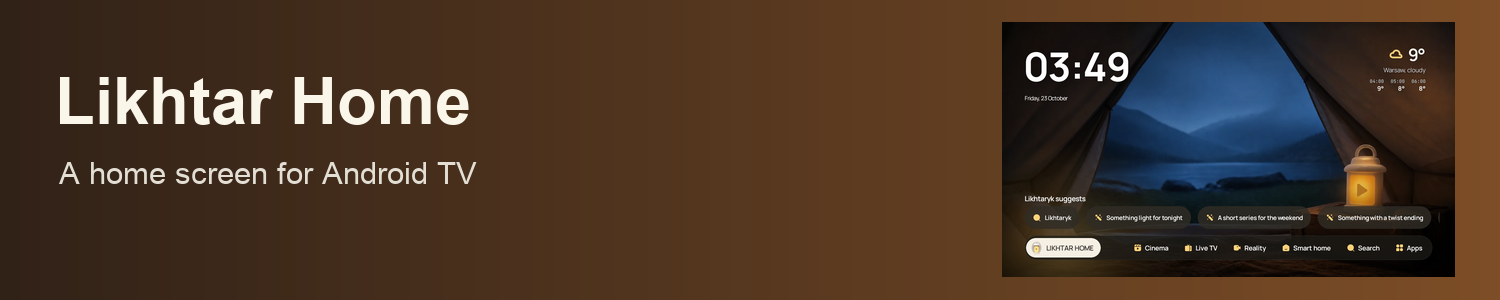
Likhtar Home. A calm home screen for Android TV and Google TV: films first, no ads. Website · GitHub

Dropyk. Files and links from your phone to the TV in one scan. And Quick Share on a Mac. Website · GitHub
Donations support my time on Shotleaf and my other apps: support the author.
GPL-3.0-or-later. © 2026 Oleksii Ziuzin (Syvyj). Shotleaf uses no third-party libraries, only Apple's frameworks.
↑ English · Українська
Робіть і редагуйте скріншоти, знаходьте скопійоване й повертайте потрібний текст кількома натисканнями. Shotleaf живе в рядку меню Mac. Безкоштовний і з відкритим кодом, без акаунта й стеження.
Завантажити для Mac · Сайт · Посібник · Релізи
macOS 15+ · Apple silicon (M1 або новіший) · GPL-3.0-or-later
Знімайте область, вікно, екран або довгу сторінку. Додавайте стрілки, текст, фігури, фони й водяні знаки; розмивайте приватні дані та копіюйте текст із зображень на Mac.

Шукайте й закріплюйте записи в історії буфера, знаходьте скріншоти та вставляйте кілька записів разом.

Розгортайте скорочення в готовий текст із датами, запитаннями й картинками.

macOS 15 або новіша на Apple silicon (M1 чи новіший).
-
Завантажте
Shotleaf.dmgз Releases, відкрийте його й перетягніть Shotleaf на Програми. -
Відкрийте Shotleaf. Він поки не нотаризований Apple, тож першого разу macOS скаже, що не може перевірити програму. Відкрийте Системні параметри › Приватність і безпека, прогорніть униз і натисніть Усе одно відкрити.
-
Посібник із налаштування попросить два дозволи:
- Запис екрана: скріншоти й розпізнавання тексту.
- Універсальний доступ: сніпети й вставка з історії буфера.
Після кожного дозволу Shotleaf перезапускається сам. Поки обидва не ввімкнені, посібник відкривається при кожному запуску.
Коли виходить нова версія, угорі меню з’являється Оновити до Shotleaf…. Shotleaf завантажує її, перевіряє, що реліз підписаний ключем оновлень Shotleaf, що завантаження йому відповідає і що застосунок усередині підписаний так само, як ваш, і перезапускається вже в ній, з усіма налаштуваннями й дозволами. Нову версію він шукає під час запуску й раз на день (вимкнути можна в Налаштуваннях › Загальні). Версії до 0.1.3 так ще не вміють: їх один раз оновіть вручну з Releases, спершу закривши Shotleaf.
macOS може перестати довіряти новій версії дозволи, хоча перемикачі виглядають увімкненими. Якщо скріншоти чи вставка перестали працювати, відкрийте Системні параметри › Приватність і безпека, приберіть Shotleaf кнопкою – із Запису екрана й Універсального доступу та дозвольте знову.
| Скріншот | ⌘⇧2 |
| Довгий скріншот | ⌘⇧3 |
| Текст зі скріншоту | ⌘⇧1 |
| Історія буфера | ⇧⌘V |
| Сніпети | ⇧⌘B |
| Редагувати останній знімок | ⌃⌥⌘E |
| Редагувати картинку з буфера | ⌃⌥⌘V |
⌘⇧3 у macOS ще й знімок усього екрана, а деякі програми використовують ⇧⌘V чи ⇧⌘B. Будь-яку клавішу можна змінити в Налаштуваннях › Гарячі клавіші.
Клавіша не спрацьовує? Можливо, її зайняла інша програма. Якщо клавіатура працює через програму для спільної клавіатури (Deskflow, Synergy, Barrier), вона передає символи, а не клавіші, тож комбінації з цифрами можуть залежати від розкладки на кожному комп'ютері; комбінація з літерою працює в будь-якій розкладці.
У Shotleaf немає облікового запису й аналітики. Розпізнавання тексту й розмиття приватного працюють на вашому Mac. У мережу він ходить лише по дві речі:
- Перевірка нової версії: під час запуску й раз на день Shotleaf питає в GitHub, який реліз найновіший. Нічого про вас не надсилається. Вимкнути можна в Налаштуваннях › Загальні.
- Посилання на скріншоти, коли ви натискаєте кнопку посилання: картинка йде в сервіс посилань Shotleaf на Cloudflare (
s.syvyj.dev, код уserver/links) і видаляється, коли посилання спливає (протягом 15 хвилин після цього), щонайбільше за 12 годин. Картинка понад 5 МБ іде як JPEG, що вміщується в ліміт. Замість нього можна підключити власний сервер (server/shots). Кнопка Перевірити в Налаштуваннях › Посилання на скріншоти так само надсилає картинку в 1 піксель.
Паролі, скопійовані з менеджерів паролів, в історії не зберігаються. Номери карток і токени доступу живуть у пам'яті хвилину й не потрапляють на диск, якщо ви їх не закріпите.
| Історія буфера, сніпети, останні скріншоти | ~/Library/Application Support/Shotleaf |
| Налаштування | ~/Library/Preferences/dev.syvyj.shotleaf.plist |
| Збережені скріншоти | тека з Налаштувань (спершу Робочий стіл) |
Закрийте Shotleaf, потім видаліть програму й теки вище:
rm -rf /Applications/Shotleaf.app ~/Library/Application\ Support/Shotleaf
defaults delete dev.syvyj.shotleafСтворіть issue або напишіть на shotleaf@syvyj.dev. Якщо Shotleaf упав, додайте найновіший файл Shotleaf-*.ips з ~/Library/Logs/DiagnosticReports.
Потрібен Xcode 26 або новіший.
scripts/make-signing-cert.sh   # один раз: локальний сертифікат, щоб дозволи переживали перезбірку
scripts/run.sh                 # зібрати, встановити в ~/Applications і запустити
Тести: cd ShotleafKit && swift test.
Код у Swift-пакеті ShotleafKit (Core, CaptureKit, PerceptionKit, SettingsKit, AppFeature); App/ лише тонка обгортка застосунку. Рішення щодо архітектури в ARCHITECTURE_DECISIONS.md.
Помилки та ідеї — в Issues («Повідомити про проблему…» в меню сам підставить версії), питання — у Discussions.
Likhtar Home. Спокійний домашній екран для Android TV і Google TV: спершу фільми, без реклами. Сайт · GitHub
Dropyk. Файли й посилання з телефона на телевізор одним скануванням. І Quick Share на Mac. Сайт · GitHub
Донати підтримують мою роботу над Shotleaf та іншими застосунками: підтримати автора.
GPL-3.0-or-later. © 2026 Oleksii Ziuzin (Syvyj). Shotleaf не використовує сторонніх бібліотек, лише фреймворки Apple.